
Fix Low Volume Android Phones: Easy Ways to Restore Loud Sound
Low volume on Android phones is a common problem that can make calls, music, and videos hard to hear. Even when the volume is set to maximum, the sound may still feel weak or unclear.
In most cases, this issue is caused by simple reasons like settings errors, dust in the speaker, or software glitches. The good news is that you can fix low-volume Android phones easily at home using quick and safe methods.
Start your troubleshooting journey and explore a variety of audio fixes by visiting the main Fix My Speaker Sound hub.
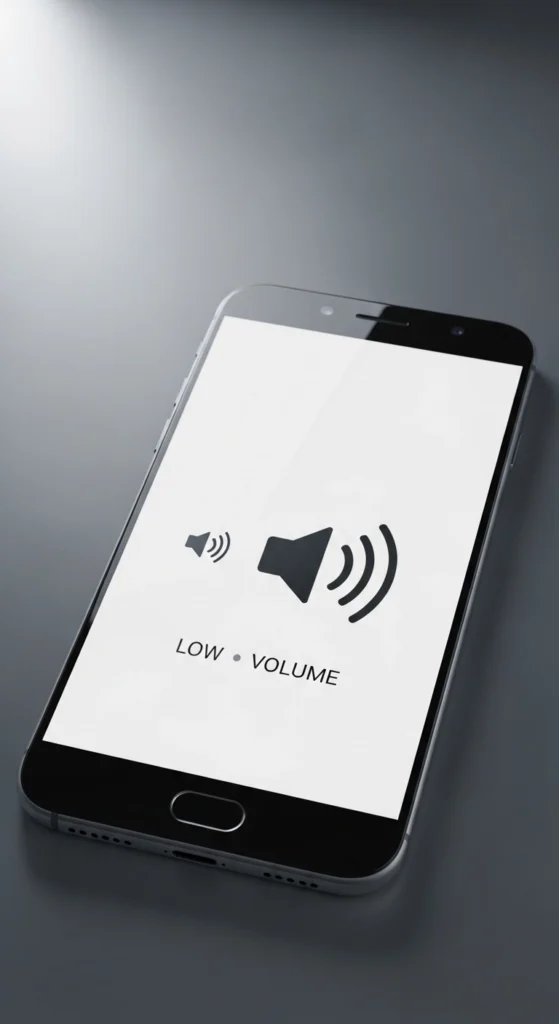
Hidden Settings That Reduce Android Speaker Volume
Sometimes your Android speaker volume feels low because of hidden system settings. These settings work in the background and reduce sound without you noticing.
Media volume limit, Bluetooth sync, and battery saver can all reduce your speaker’s sound output. Even app restrictions and developer settings may quietly lower volume. Checking these settings can quickly fix low sound problems.
Simple Natural Ways to Make Android Sound Louder
You don’t always need settings or apps to fix low-volume Android phones. Small physical changes can improve sound naturally.
Placing your phone on a hard surface helps sound reflect better and become louder. Keeping the speaker facing you also improves clarity. Avoid covering the speaker and always use clean, high-quality audio for better sound performance.
Common Call Sound Problems on Android Phones
Many users face low call volume issues even when the normal sound works fine. This usually affects the ear speaker during calls.
Dust in the ear speaker, wrong audio output, or noise reduction settings can make voices unclear. Sometimes, software bugs or low in-call volume settings also reduce call speaker clarity.
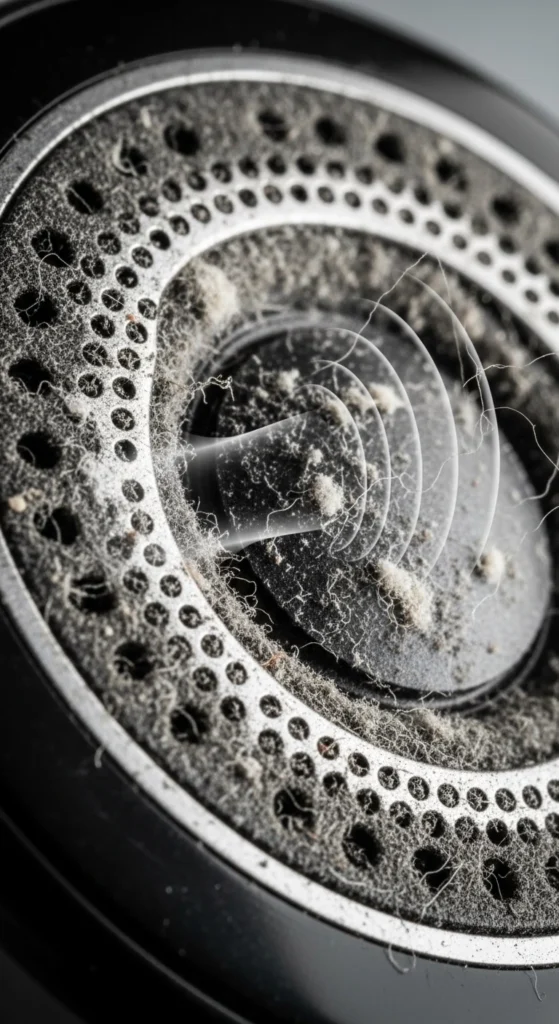
Everyday Reasons Your Android Speaker Sounds Quiet
- Dust or dirt inside the speaker grill (speaker dust issue)
- Background apps affecting sound performance
- Wrong sound or silent mode selected
- Temporary system bugs or glitches
- Audio is going to Bluetooth or another device
- Low-quality audio file or app issue
- Hardware wear or internal damage
Learn the safest and most effective methods to clear physical blockages by reading our guide on how to clean speaker dust.
Deep Fix Methods for Ongoing Low Volume Issues
If quick fixes do not work, your Android may have deeper settings or system problems affecting sound. Try these detailed solutions to restore proper speaker volume.
Clean Speaker Area and Remove Blockage
Dust, lint, or dirt can block sound output and reduce volume.
- Gently clean the speaker grill using a soft brush
- Remove the phone case and check the sound again
- Avoid using sharp objects
Clean regularly to maintain clear speaker sound
Reset Audio Settings to Default
Wrong sound settings can reduce overall volume without you noticing.
- Reset all sound settings to factory/default mode
- Fix accidental volume limits or changes
- Restore balanced audio output
Helps fix hidden low speaker volume issues
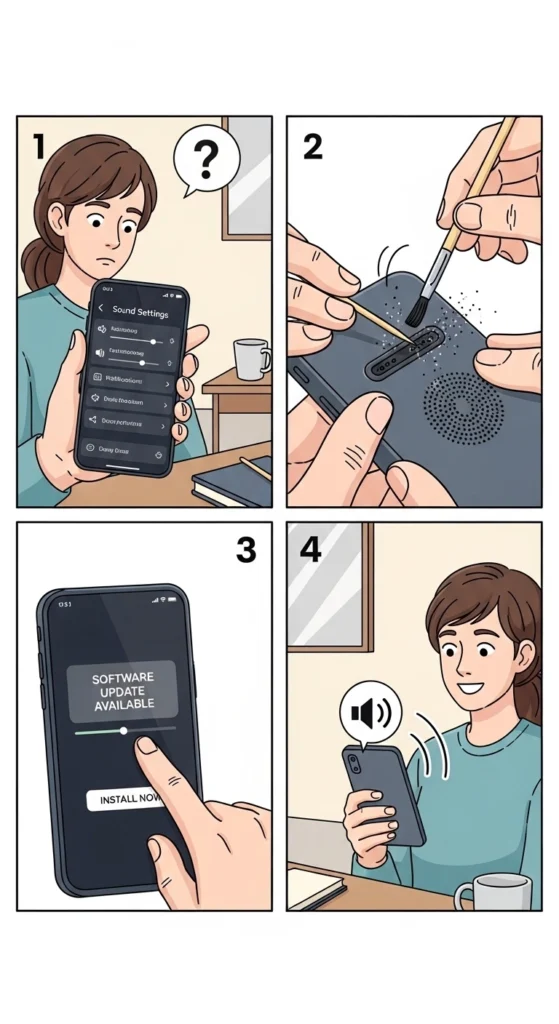
Update Your Android Software
Old system versions may contain bugs that affect sound.
- Install the latest Android updates
- Fix audio glitches and performance issues
- Improve compatibility with apps
Boost overall speaker performance and clarity
Turn Off Sound Enhancements or Filters
Some effects reduce loudness or distort sound.
- Disable Dolby, equalizer effects, or enhancements
- Turn off “audio optimization” features if available
- Check app sound settings individually
Helps restore natural and louder speaker output
Explore software tweaks and built-in Android features to boost your audio output by checking out how to increase my speaker volume.
Apps and Tools to Improve Android Speaker Sound
You can use different apps and tools to improve your Android speaker volume and sound quality. These tools help make sound louder, clearer, and less distorted. However, they should always be used carefully to avoid damaging your speaker hardware.
Volume Booster Apps
Volume booster apps increase your Android speaker volume beyond the default system limit by amplifying audio output.
How to use:
- Open Google Play Store
- Search “Volume Booster” or “Speaker Booster”
- Install a well-rated app
- Increase volume slowly using slider
- Test with music or video
Popular apps:
- Volume Booster GOODEV
- Equalizer FX
- Loud Volume Booster
Equalizer Apps
Equalizer apps help you control sound frequencies like bass and treble to improve speaker sound clarity.
How to use:
- Install an equalizer app from Play Store
- Choose a preset like “Loud” or “Rock.”
- Or manually increase frequency sliders
- Apply and test sound
Many Android phones also have a built-in equalizer in sound settings.
Speaker Cleaner Apps
Speaker cleaner apps use sound waves to remove dust or moisture from your speaker grill.
How to use:
- Download “Speaker Cleaner” or “Clear Wave”
- Run cleaning mode
- Keep phone facing downward
- Let it run for 30–60 seconds
- Wipe speaker gently after
Best for light dust or water blockage.
Sound Amplifier Tools
Sound Amplifier is a built-in Android tool that improves speaker output and clarity. Safe and free option for improving Android sound quality.
How to use:
- Go to Settings
- Open Accessibility
- Tap Sound Amplifier
- Turn it on
- Adjust boost level
Experiencing stereo imbalance? Figure out what to do when you notice my speaker one side not working.
Mistakes That Make Android Volume Worse
Many users make simple mistakes that reduce low volume Android phone performance and damage sound quality over time.
Playing at Maximum Volume for Too Long
Using full volume for long periods can damage your speaker hardware and reduce sound quality.
- Keep volume between 60–80% daily
- Use max volume only for a short time
- Use headphones for long listening
Installing Too Many Booster Apps
Using multiple booster apps can create sound conflicts and reduce speaker performance.
- Use only one booster or equalizer app
- Remove unused audio apps
- Restart the phone after uninstalling apps
Ignoring Software Updates
Old software may cause bugs that affect the Android speaker volume.
- Turn on auto updates
- Check updates monthly
- Restart after update
Blocking Speaker Grille
Blocking the speaker reduces sound instantly and causes low-volume issues.
- Remove phone case if needed
- Avoid covering the speaker with your hand
- Use cases that don’t block the speaker
Cleaning Speaker with Sharp Objects
Sharp tools can permanently damage your speaker membrane.
- Use a soft brush only
- Use compressed air if needed
- Never insert sharp objects
Tips to Keep Android Sound Loud for a Long Time
Good habits help maintain a strong Android speaker volume for years.
Clean Speaker Regularly
- Clean every 2–4 weeks
- Use soft brush only
- Remove dust and lint
- Avoid liquids
Protect from Moisture
- Avoid rain and wet places
- Don’t use in bathrooms
- Dry immediately if wet
- Use a water-resistant case if needed
Keep Volume at Safe Levels
- Use 60–75% daily volume
- Avoid max volume for a long time
- Use headphones for long sessions
Update Software on Time
- Enable auto updates
- Check updates regularly
- Restart after updates
Keep Speaker Area Unblocked
- Use a proper phone case
- Don’t cover the speaker with your hand
- Clean the grille regularly
- Avoid pocket lint blockage
If your media sounds fine but you cannot hear the person on the other end of the line, check out our guide on my speaker not working during calls.
Conclusion
Low volume on Android phones is a common issue, but in most cases it can be fixed easily with simple steps like adjusting settings, cleaning the speaker, and updating software. These small actions can quickly improve your Android speaker volume and restore clear sound.
If the problem still continues after trying all methods, it may be a hardware issue that needs professional repair. By following the right tips and avoiding common mistakes, you can keep your phone speaker loud and working properly for a long time.
If your phone is loud everywhere except your music app, learn how to fix the settings when Spotify sound too low.
Frequently Asked Questions
Why is my Android phone volume so low?
Low volume is usually caused by dust, settings issues, or software bugs.
Can I fix low speaker sound without repair?
Yes, most cases can be fixed using settings and cleaning methods.
Does dust really affect phone volume?
Yes, dust blocks sound and reduces speaker output.
Why does my volume change automatically?
It may be due to software settings or connected Bluetooth devices.
When should I repair my speaker?
When sound does not improve after all troubleshooting steps.

