
Fix My Speaker Not Working During Calls: Android & iPhone Solutions
If you’re facing a problem where your phone speaker works perfectly for music or videos but stops working during calls, you’re not alone. Many users search for ways to fix my speaker when they can’t hear anything during calls.
This issue can be frustrating, especially when you rely on your phone for important conversations. The good news is that most call speaker problems are caused by simple settings or minor glitches and you can fix them yourself in minutes.
In this guide, you’ll learn easy, step-by-step solutions to fix speaker issues during calls on both Android and iPhone devices. If your phone remains completely silent during conversations, you can fix my speaker sound by checking for app permission conflicts.
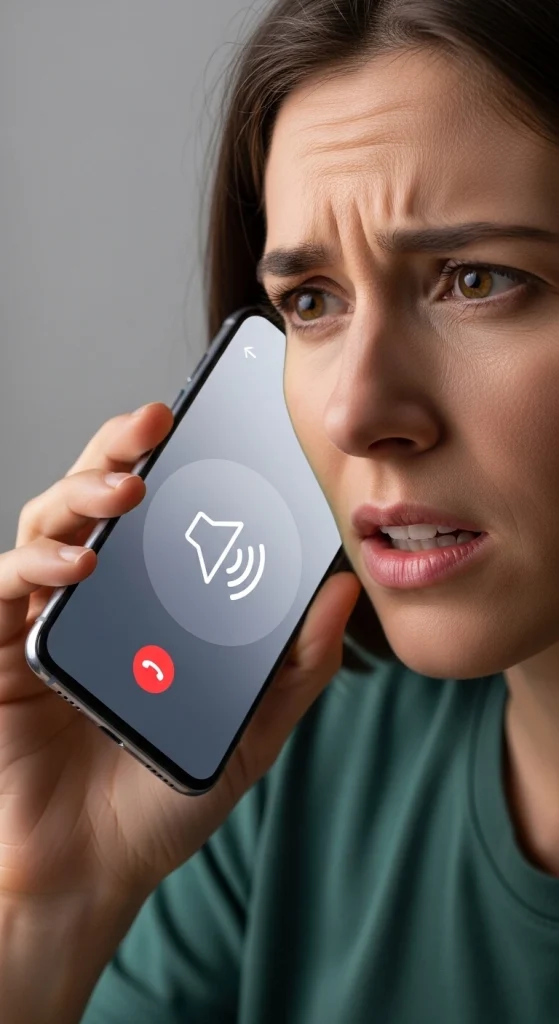
Why Is My Speaker Not Working During Calls?
Understanding the reason behind this problem is the first step to solving it. When your phone works fine for music or videos but fails during calls, it usually means there is a small issue with settings, connections, or apps not a complete hardware failure. Many users search for ways to fix my speaker not working during calls, and the good news is that most of these issues are simple and can be fixed at home without any technical knowledge. Below are the most common causes you should check.
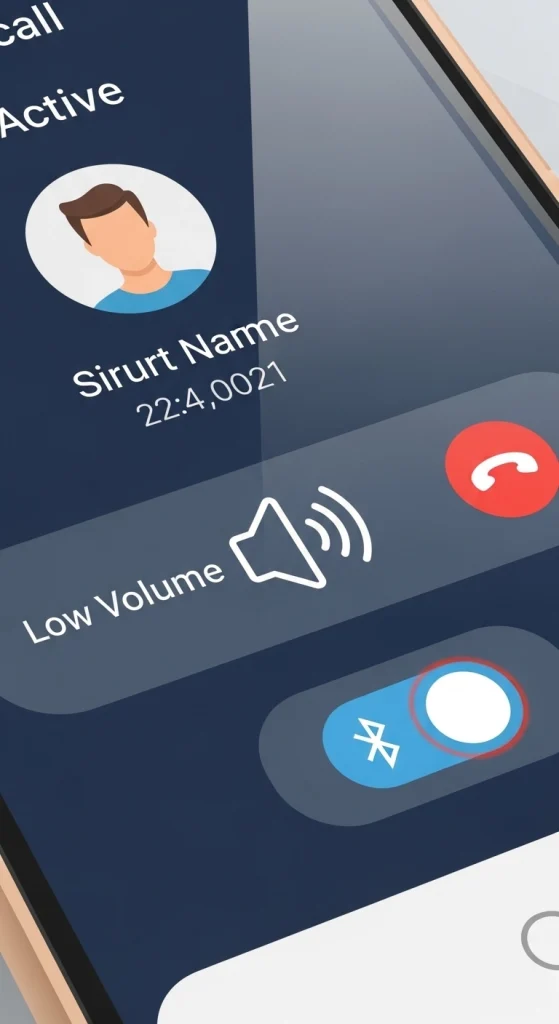
Low Call Volume Settings
One of the most common reasons is low call volume. Your phone has separate volume controls for media and calls, so even if your music is loud, your call sound may still be very low. This can make it feel like your speaker is not working during calls. To fix this, press the volume up button while you are on a call and make sure the call volume is set to maximum. Always check this first when trying to fix my speaker issues.
Phone Stuck in Earpiece Mode
Sometimes your phone may be using the earpiece instead of the loudspeaker. This happens when the phone is in normal call mode instead of speaker mode. In this case, the sound is very low, and users think their phone speaker is not working during calls. To solve this, tap the speaker icon during a call and switch between modes. This simple step can quickly help you fix speaker call issues.
Bluetooth Device Interference
Bluetooth is another common cause of this problem. If your phone is connected to wireless earbuds, headphones, or a car system, the call sound may go to that device instead of your phone. This makes it seem like your speaker is not working, but actually the audio is playing somewhere else. To fix this, turn off Bluetooth or disconnect all devices. This is an important step when trying to fix my speaker during calls.
Software Glitches
Sometimes the issue is caused by a small software bug or temporary glitch. Your phone may have trouble handling call audio even though everything else works fine. These glitches can happen due to outdated software or too many background apps. A quick restart often solves the problem. Keeping your phone updated is also important if you want to fix speaker problems and avoid future issues.
App-Specific Issues
If the problem only happens in apps like WhatsApp or Messenger, then the issue is likely inside the app. Missing permissions, outdated versions, or app bugs can cause speaker not working during calls in specific apps. To fix this, check app permissions, update the app, or reinstall it. This is especially useful if you are trying to fix my speaker for internet calls instead of normal phone calls.
Fix My Speaker Issues in WhatsApp, Messenger & Other Apps
Sometimes the problem only happens in specific apps instead of normal phone calls. This means your phone speaker is fine, but the app settings or permissions are causing the issue. Follow these steps to fix my speaker not working during calls in apps.
Check App Permissions
Make sure the app has permission to use your microphone and audio. Without proper access, calls may have no sound. This is a common reason for speaker not working during calls in apps.
Update the App
Old versions of apps like WhatsApp or Messenger can cause bugs in call audio. Go to the app store and update to the latest version. Updating can quickly help you fix my speaker issues.
Reinstall the App
If the app is not working properly, uninstall and reinstall it. This removes corrupted files and resets the app. It’s a simple way to fix speaker problems during calls in apps.
Quick Fix My Speaker Solutions
Before trying advanced methods, start with these simple steps. These quick solutions can solve most fix my speaker not working during calls problems in just a few minutes without any technical effort.
Increase Call Volume
During a call, press the volume up button to make sure the call sound is not too low. Many users forget that call volume is separate from media volume. This simple step can quickly fix speaker not working during calls issues.
Toggle Speaker Mode
Tap the speaker icon during a call to switch between earpiece and loudspeaker. Sometimes the phone stays in the wrong mode, causing low or no sound. Switching modes can instantly help you fix my speaker problem.
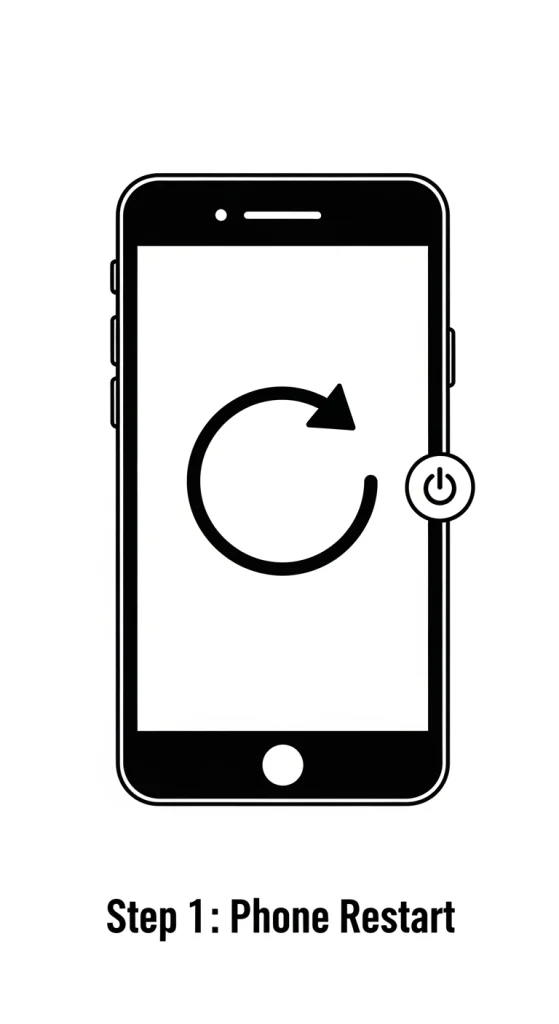
Restart Your Phone
Restarting your phone can fix temporary bugs or software glitches affecting call audio. It clears background issues and refreshes system functions. This is one of the easiest ways to fix speaker problems quickly.
Turn Off Bluetooth
If Bluetooth is on, your phone may send call audio to another device like earbuds or a car system. This makes it seem like your speaker is not working during calls. Turn off Bluetooth to bring sound back to your phone.
Remove Phone Case
Sometimes a thick or poorly designed phone case blocks the speaker or microphone. This can reduce sound or make calls unclear. Removing the case can help improve sound and fix my speaker issues easily.
Ensure your background music apps aren’t interfering; for example, if your Spotify sound too low while on a call, it’s just the built-in audio ducking feature at work.
Fix Android Phone Speaker Not Working During Calls Quickly
If the quick fixes didn’t solve your problem, don’t worry. These Android-specific methods can help you fully fix my speaker not working during calls issue step by step.
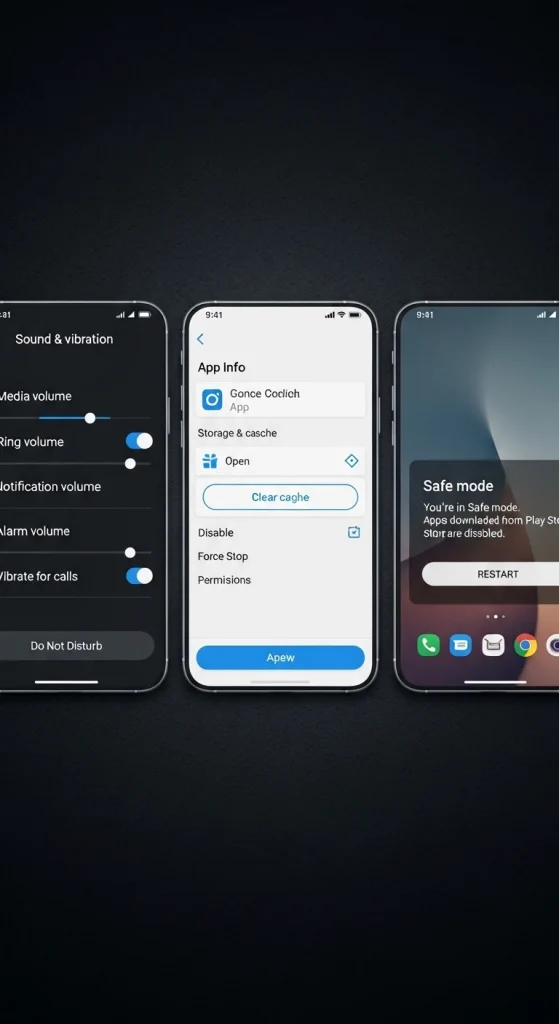
Check Call Volume Settings
Go to your phone’s sound settings and make sure the call volume is set to the highest level. Sometimes the volume is low without you noticing it. This simple check can quickly fix speaker not working during calls.
Clear Phone App Cache
Open Settings, go to Apps, select the Phone app, and tap “Clear Cache.” This removes temporary files that may be causing call audio issues. It is a safe and effective way to fix my speaker problems.
Update Android Software
If your phone software is outdated, it can cause bugs that affect call sound. Always check for system updates and install the latest version. Updating helps improve performance and fix speaker issues.
Test Speaker Using Secret Codes
Some Android phones have hidden test codes like *#0# to check hardware functions. This helps you confirm if the speaker is working properly or not. It’s useful when you want to fix my speaker not working problems.
Boot into Safe Mode
Safe mode turns off all third-party apps and runs only system apps. If your speaker works in safe mode, it means an app is causing the issue. This step helps identify problems affecting your phone speaker during calls.
Reset App Preferences
Resetting app preferences restores default settings for all apps without deleting your data. This can fix permission or setting issues that affect call audio. It’s a helpful method to fix my speaker during calls.
If you are forced to use speakerphone because the internal one is too quiet, you might need to check how to increase my speaker volume in your accessibility settings.
How to Make Sure Your Speaker Is Working After Fix
After applying all fixes, you should test your speaker to make sure everything is working fine. This helps confirm whether your phone speaker not working during calls issue is solved or not.
Play Music or Video
Play any song or video on your phone and check the sound quality. If the audio is clear and loud, your speaker is working fine. This is the easiest way to test your speaker performance.
Use Speaker Test Sounds
You can use test tones or sound tools to check speaker clarity and balance. These sounds help detect distortion or low volume issues. It’s a useful method to fully fix my speaker problems.
Check Both Call and Media Audio
Make a test call and compare it with music or video playback. If both work properly, your issue is fixed. This final check ensures your speaker is working during calls and media.
Fix My Speaker Not Working During Calls on iPhone (Step-by-Step)
If your iPhone speaker works for music but not during calls, don’t worry. These simple steps can help you fix my speaker not working during calls issue quickly without any technical skills.
Check Audio Output Settings
During a call, tap the audio button and make sure the speaker option is selected. Sometimes the sound is routed to the earpiece or another device. This quick check can help you fix speaker not working during calls on iPhone.
Clean the Earpiece Speaker
Dust, dirt, or pocket lint can block the earpiece and reduce sound during calls. Use a soft brush or dry cloth to clean it gently. Cleaning can improve sound and help fix my speaker problem easily. Many call quality issues are caused by skin oils and debris; learn how to clean speaker dust specifically from the earpiece.
Disable Bluetooth Devices
If Bluetooth is on, your iPhone may send call audio to AirPods or other devices. This makes it seem like your speaker is not working during calls. Turn off Bluetooth to bring sound back to your phone.
Reset All Settings
Go to Settings → General → Transfer or Reset iPhone → Reset → Reset All Settings. This will reset system settings without deleting your data. It is a useful step to fix my speaker during calls caused by wrong settings.
Update iOS Version
Outdated iOS versions can cause bugs that affect call audio. Always update your iPhone to the latest version. This helps improve performance and prevents speaker issues during calls.
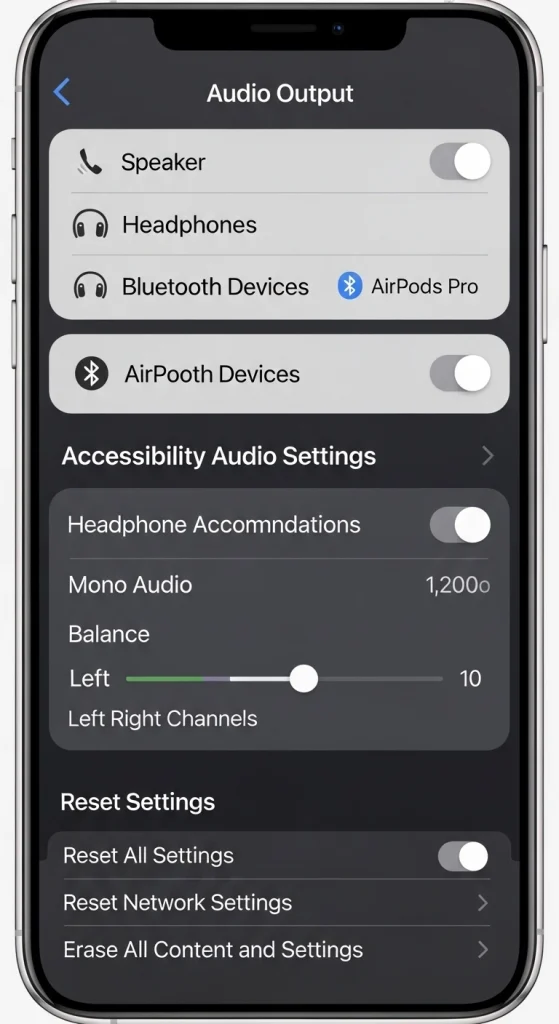
If the caller’s voice only comes through one side of your Bluetooth headset, refer to our troubleshooting for my speaker one side not working.
When to Visit a Repair Shop for Speaker Problems
If you have tried all the steps and your issue is still not fixed, then the problem may be hardware-related. In this case, it’s better to get professional help to properly fix my speaker not working during calls issue.
No Sound at All
If your phone has no sound during calls, music, or videos, the speaker may be completely damaged. This is a strong sign that you cannot fix my speaker at home. A technician can check and replace the speaker if needed.
Distorted or Very Low Audio
If your speaker sound is always unclear, crackling, or very low, it may be damaged inside. This usually happens after long-term use or minor damage. In this case, repair is the best way to fix speaker problems.
Physical Damage or Water Exposure
If your phone was dropped or exposed to water, the speaker can stop working properly. Water and impact can damage internal parts. This is a common reason why users search to fix my speaker not working.
Speaker Works Only Sometimes
If your speaker works sometimes and stops randomly, it may be a loose connection or hardware fault. This kind of issue cannot be fixed with settings. You may need a repair shop to fully fix my speaker during calls.
PC users taking Zoom or Teams calls often face the laptop speakers sound muffled or low error, which usually requires an audio driver rollback.
Conclusion
Dealing with speaker issues during calls can be frustrating, but in most cases, the problem is easy to fix. Whether it’s a simple setting, Bluetooth interference, or a minor software glitch, these solutions can help you restore your call audio quickly.
Start with the quick fixes, then move to device-specific steps for Android or iPhone. If the problem still persists, it may be time to consider professional repair.
By following this guide, you can confidently troubleshoot and fix my speaker issues without needing technical expertise.
Frequently Asked Questions
Why does my speaker work for music and videos but not during calls?
Because call audio uses different settings and may be routed to earpiece, Bluetooth, or has low call volume.
Why can I only hear calls on speakerphone, not through the normal earpiece?
Your earpiece speaker may be blocked, damaged, or disabled due to settings or dirt.
My phone speaker suddenly stopped working during calls after an update what do I do?
Restart your phone and check settings, as updates can cause temporary software bugs.
How do I turn on the speaker during a call on Android or iPhone?
Tap the speaker icon during a call to switch audio to loudspeaker mode.
Could a Bluetooth device be causing my speaker to not work during calls?
Yes, Bluetooth may redirect call audio to connected devices like earbuds or car systems.
Why does WhatsApp call have no sound even though normal calls work fine?
It is usually an app issue caused by permissions, bugs, or outdated version.
How do I test if my phone speaker is actually broken or software problem?
If media works but calls don’t, it’s software; no sound anywhere means hardware issue.
Can a phone case or screen protector block my speaker?
Yes, thick or poorly fitted cases can block or reduce speaker sound.
How do I fix speaker issues during calls on Android in Safe Mode?
Safe Mode helps identify if a third-party app is causing the speaker problem.
Does “Reset All Settings” on iPhone delete my photos and apps?
No, it only resets settings and does not delete your data.

