Laptop Speakers Sound Muffled or Low? How to Safely Clean Grilles & Boost Audio
Your laptop was fine last week, but now the audio sounds like someone wrapped it in a blanket. Muffled, quiet, or just off.
Before you assume something is broken, here’s the truth: most laptop speaker problems are caused by dust, minor moisture, or a software setting, all of which you can fix yourself, at home, in minutes.
This guide covers everything: what’s actually causing the problem, how to use a speaker cleaner tool, safe manual cleaning methods, and when it’s time to get professional help.
To quickly fix my speaker sound on a PC, start by navigating to the “Enhancements” tab in your playback device properties.
Safe Manual Cleaning Methods for Laptop Speakers
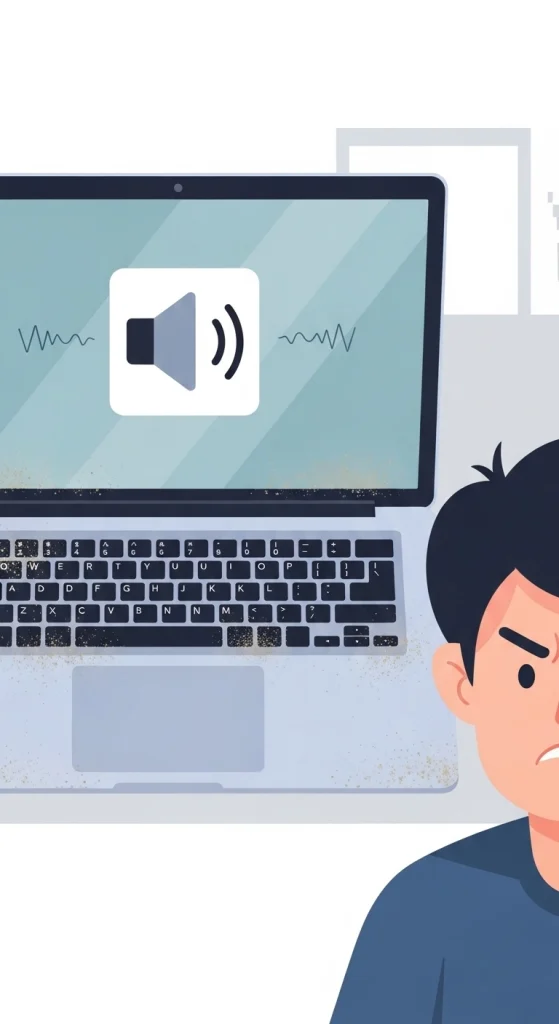
If your laptop speakers have dust or dirt on the outside, you can clean them safely at home. Just be gentle and follow the right steps so you don’t damage anything.
Do This:
- Use a soft brush, such as a clean paintbrush or makeup brush, to gently remove dust from the speaker grilles.
- Wipe the outside area with a dry microfiber cloth to clean dirt and dust.
- Use short bursts of compressed air from a distance to blow out dust. Keep the can upright and stay at least 6 inches away.
Never Do This:
- Don’t use water, sprays, or wet cloths directly on the speakers
- Don’t insert sharp items like toothpicks, pins, or cotton swab tips into grills, as they can damage the speaker
- Don’t shake or tilt the laptop strongly while cleaning
Pro tip: Clean in a bright area so you can see the grill clearly and avoid pressing too hard
Fix Software Issues Affecting Laptop Sound
If cleaning didn’t fully restore your audio, a software fix might be what you actually need:
Update Your Audio Drivers
- On Windows: Open Device Manager → Sound, video and game controllers → right-click your audio device → Update driver
- On Mac: Run Software Update — audio drivers update with macOS
Disable Sound Enhancements
- Windows: Right-click the sound icon → Sounds → Playback → select your speakers → Properties → Enhancements → check Disable all enhancements
Restart the Windows Audio Service
- Press Windows + R, type services.msc, find Windows Audio, right-click → Restart
Check Your Default Audio Output: Make sure your laptop speakers are selected as the default playback device, not a Bluetooth device or virtual output.
This error can also prevent clear communication during virtual meetings; check my speaker not working during calls for more application-specific tips.
If the “muffled” effect only happens on the left or right side of your keyboard, read our guide on my speaker one side not working.
Why Do Laptop Speakers Sound Muffled or Low?
If your laptop speaker muffled sound fix search brought you here, you’re in the right place. These are the four most common culprits:
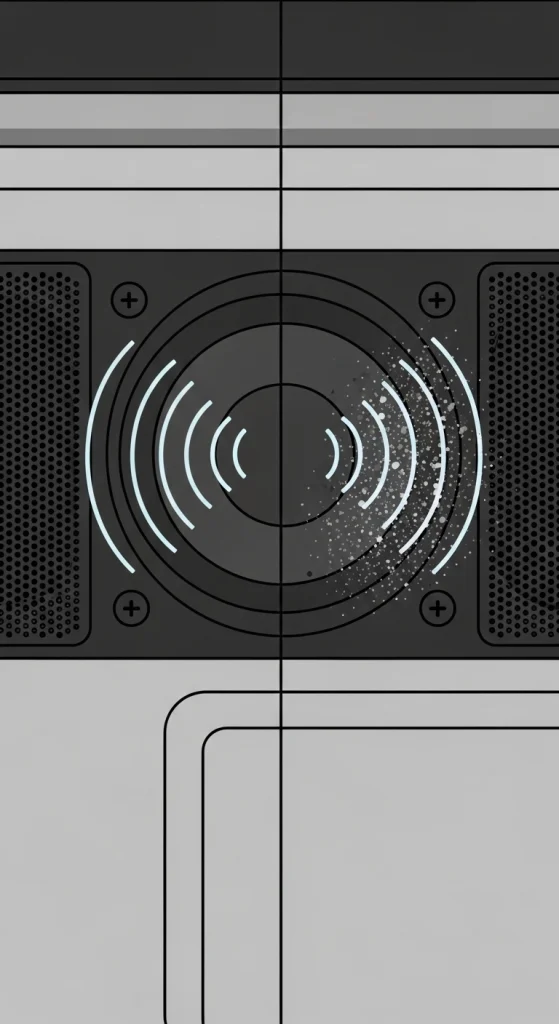
- Dust Buildup Inside the Speaker Grills: Over time, dust, lint, and debris pack into the tiny speaker grills. This physically blocks sound from coming out clearly, like trying to talk through a scarf.
- Moisture or Water Exposure: Even humidity can affect speaker membranes. If you’ve ever had a drink near your laptop or used it in a steamy room, moisture could be muffling your audio.
- Audio Driver or Software Issues: Corrupted or outdated drivers can cause your speakers to underperform even if the hardware is perfectly fine.
- Incorrect Sound Settings: Audio enhancements, equalizer settings, or misconfigured sound outputs can silently cap or distort your volume without any visible warning.
Many users encounter this exact error when they notice their Spotify sound too low despite the Windows system volume being set at 100%.
What Is a Laptop Speaker Cleaner Tool and How Does It Work?
A laptop speaker cleaner tool is a simple app or online tool that plays special sounds to clean your speakers. These sounds use different frequencies that make the speaker vibrate quickly. This vibration helps remove dust and can also push out small amounts of moisture stuck inside the speaker.
You don’t need to open your laptop or use any tools. Just play the sound, and it helps clean the speaker from the inside.
Key Benefits of Using a Speaker Cleaner Tool
- Works without opening your laptop
You can clean your speakers safely without any technical work. - Safe for everyday use at home
These tools are simple and safe if used properly. - Removes dust and light moisture
Helps improve sound by clearing small blockages. - Free or low-cost tools available
Many speaker cleaner tools are available online at no cost.
Quick Checks Before You Start Cleaning
Before you start cleaning your laptop speakers, try these simple checks. They only take a few minutes and can often fix the problem quickly without any extra effort.
Restart Your Laptop
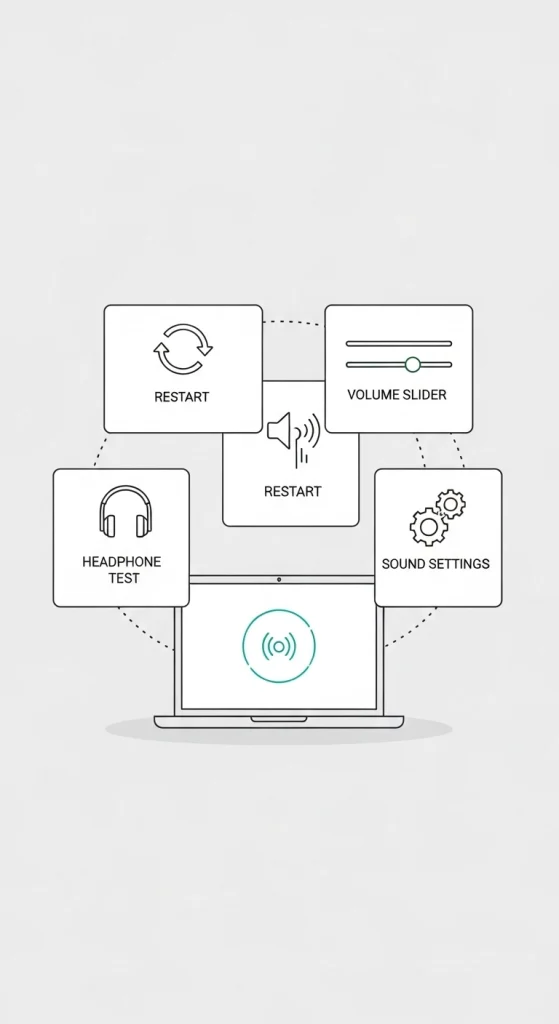
Restarting your laptop can fix small audio problems instantly. It refreshes the system and removes temporary glitches affecting sound.
Check Volume Mixer Settings
Open the volume mixer and make sure the app you are using is not muted. Sometimes the app volume is low even when the system volume is high. For a permanent software solution, learn how to increase my speaker volume by bypassing the default Realtek limitations.
Test with Headphones
Plug in headphones and check the sound. If headphones work fine, the issue is with your laptop speakers, not the software.
Turn Off Audio Enhancements
Go to sound settings and disable any audio enhancements or effects. These settings can sometimes make the sound muffled or unclear.
How to Test Your Laptop Speakers After Cleaning
Don’t just assume it’s better, verify it properly:
- Play a familiar song you know well, and you’ll notice the difference immediately
- Test left and right channels separately, search “left right speaker test” on YouTube
- Compare the volume at 50% before and after. If you need to crank it less now, the fix worked
- Try both built-in speakers and headphones to confirm whether the issue was hardware or software
- Play a bass-heavy track; muffling is most obvious in low frequencies, so this is your best test
When Your Laptop Speaker Needs Professional Repair
Sometimes the problem goes beyond what you can fix at home. Consider professional repair if:
- There’s no sound at all, even after driver reinstalls and setting checks
- You hear crackling, popping, or distortion at any volume level
- The speaker sounds physically broken, rattling, buzzing, or having uneven output
- You’ve tried everything in this guide, and nothing has improved
A laptop speaker replacement typically costs $50–$150 at a repair shop, depending on the model. It’s worth it if the alternatives are buying a new laptop or living with a broken one.
How to Use a Laptop Speaker Cleaner Sound (Step-by-Step)
This method works for most muffled or quiet speaker issues caused by dust or moisture no disassembly needed.
- Step 1: Find a Speaker Cleaner Tool: Search for “online speaker cleaner” or “fix my speaker tool.” There are several free browser-based options. You can also find audio files specifically recorded for speaker cleaning.
- Step 2: Max Out Your Laptop Volume: Set your system volume to 100%. The vibration only works effectively at high volume, which is what physically dislodges particles.
- Step 3: Play the Cleaning Sound: Start the cleaning frequency or tone sweep. You’ll likely hear a buzzing or sweeping sound that’s normal and means it’s working.
- Step 4: Let It Run for 3–5 Minutes: Don’t stop it early. Let the full frequency range play through so both low and high-frequency dust gets shaken loose.
- Step 5: Repeat If Needed: For heavy dust buildup, run it 2–3 times. You should notice the sound getting progressively clearer.
- Step 6: Wipe the Grills :After running the cleaner, use a soft dry cloth to wipe away any dust that has been pushed to the surface.
Conclusion
Muffled or low laptop sound can be annoying, but it is usually easy to fix at home. Most of the time, you don’t need any expert or repair service.
Just start with a speaker cleaner tool, then gently clean the speaker area and check your sound settings and drivers. Follow each step slowly, and you will most likely get a clear and loud sound again without spending any money.
Frequently Asked Questions
Can I clean laptop speakers with a sound tool?
Yes, speaker cleaner tools use special sound frequencies that vibrate the speaker. This vibration helps shake out dust and moisture. They are safe, free, and work without opening your laptop.
How do I remove dust from laptop speakers safely?
Use a soft brush to clean the speaker grills gently. You can also use short bursts of compressed air from a distance. Never use water or put anything inside the speaker holes.
Why is my laptop's sound muffled even at full volume?
This usually happens due to dust inside the speakers, trapped moisture, outdated audio drivers, or sound settings that affect output. Start with simple cleaning and basic checks first.
Can water damage laptop speakers?
Yes, even a small amount of water can damage speaker parts and cause low or unclear sound. If caught early, a speaker cleaner tool may help remove moisture. Severe damage may need repair.
Do I need to open my laptop to clean the speakers?
No, in most cases you don’t need to open it. Sound tools and simple external cleaning are enough. Only serious internal damage may require a technician.
How do I test if my laptop speakers are fixed?
Play a familiar song and check sound clarity and volume. Test both left and right audio channels and compare with headphones. If the sound is clear and balanced, your speakers are working fine.