Spotify Sound Too Low? How to Maximize Volume on Android & iPhone
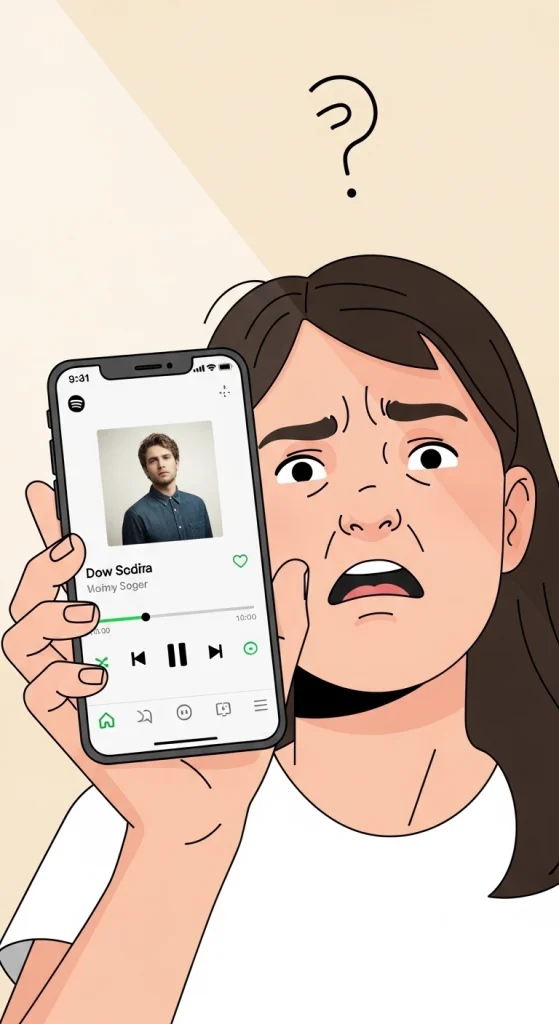
Even when your volume is at maximum, Spotify may still sound quieter than other apps on your phone. This can be very frustrating, especially when music does not feel loud enough.
You are not the only one facing this issue. It is a very common problem, and the good news is that it is usually not caused by hardware damage. In most cases, a simple setting inside Spotify or your phone is limiting the sound without you realizing it.
In this guide, you will learn what causes this problem and how to fix it quickly using easy steps. No technical knowledge is needed, and you can make your Spotify sound louder in just a few minutes.
Maximize your music experience and fix my speaker sound by adjusting the “Normalize Volume” settings directly inside the app.
Fix Low Spotify Volume on Android (Step-by-Step)
If the Spotify settings didn’t fully solve it, try these Android-specific steps:
- Turn Up Media Volume Separately Go to Settings → Sound → Volume and drag the Media slider to max. (This is separate from your ringer volume.)
- Disable Battery Saver Go to Settings → Battery and turn off Battery Saver if it’s on.
- Clear Spotify’s Cache Old cached data can cause bugs. Go to Settings → Apps → Spotify → Storage → Clear Cache.
- Adjust Your Equalizer Go to Settings → Sound → Equalizer and either set it to Flat or boost the mid and high frequencies.
- Update Spotify Open the Play Store, search Spotify, and tap Update if available.
Fix Spotify Volume on iPhone
For iPhone users, here’s what to try:
- Turn Off Sound Check Go to Settings → Music → Sound Check and toggle it off. This Apple feature limits volume in ways that affect Spotify too.
- Disable Low Power Mode Go to Settings → Battery and turn off Low Power Mode.
- Reinstall Spotify Delete the app and reinstall it fresh from the App Store. This clears corrupted data and resets audio settings.
- Update iOS Go to Settings → General → Software Update. Audio bugs are often fixed in system updates.
Media volume shouldn’t drop when you switch to a conversation; if it does, check my speaker not working during calls.
Why Is Spotify So Quiet Even at Full Volume?
Before jumping to fixes, it helps to know why this happens. Here are the most common reasons:
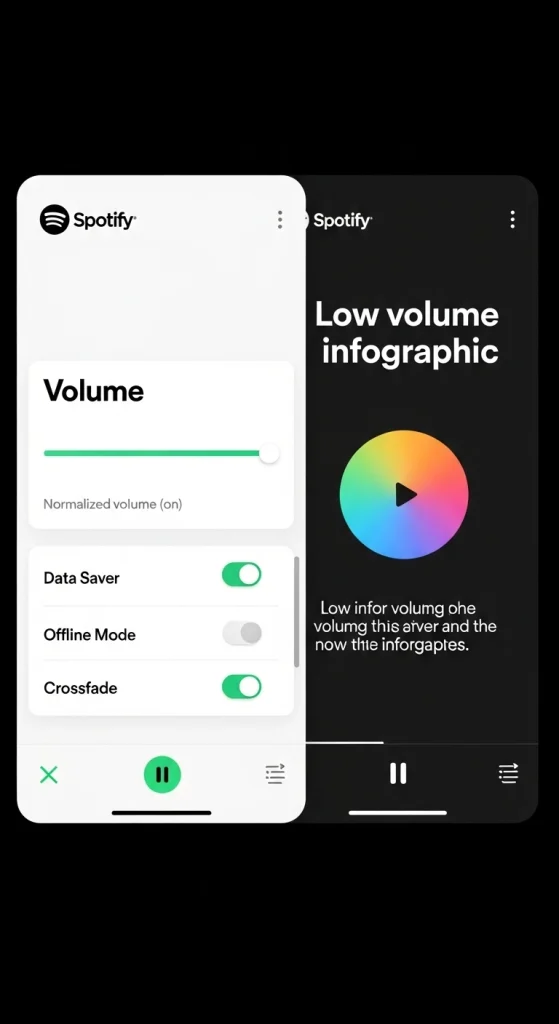
- Audio Normalization Is Turned On: Spotify automatically adjusts all songs to play at a similar volume. That sounds helpful, but it often makes everything quieter than it should be.
- Volume Level Set to “Normal” Instead of “Loud”: Spotify has three volume presets: Quiet, Normal, and Loud. Most users are stuck on Normal without realizing Loud exists.
- Battery Saver or Low Power Mode Is Active: Both Android and iPhone reduce system performance in power-saving modes, and that can affect audio output.
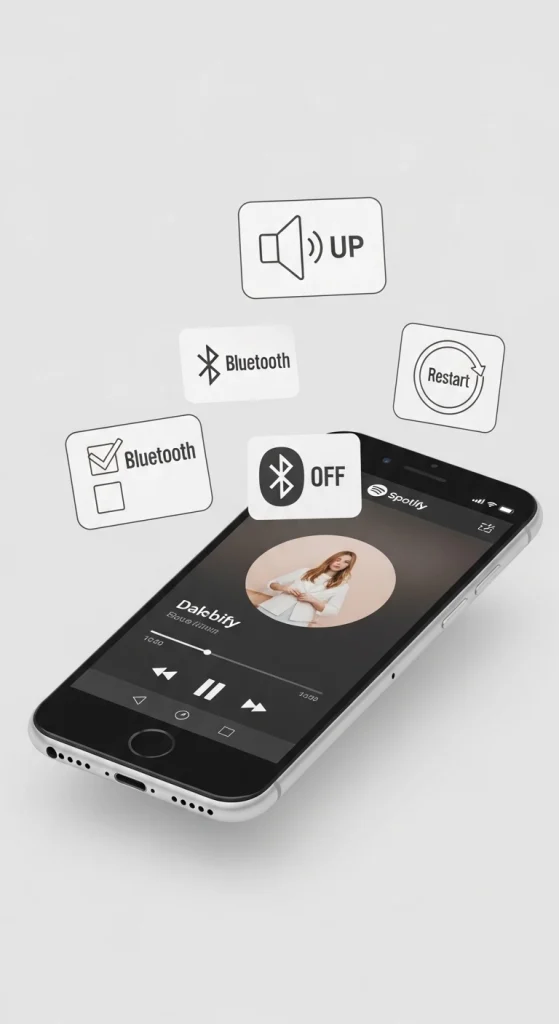
- Bluetooth Is Redirecting Your Audio: If you’ve got Bluetooth on, your audio might be routing to a nearby device (earbuds, car, speaker) at a lower volume.
- App or Software Bug: An outdated app or phone software can silently break audio performance.
Bluetooth Making Spotify Quieter? Here's the Fix
Bluetooth audio issues are sneaky. Try this:
- Turn Bluetooth off completely and test Spotify through your phone speaker
- If it sounds better, your Bluetooth device (or connection) is the issue
- Forget the device in Bluetooth settings and re-pair it fresh
- If the problem persists with a specific pair of earbuds, test them with another phone to confirm it’s a device issue
If Nothing Works: Advanced Fixes
- Reinstall Spotify: A clean install removes corrupted files that settings changes can’t fix.
- Reset Network Settings: On iPhone: Settings → General → Transfer or Reset iPhone → Reset → Reset Network Settings. On Android: Settings → General Management → Reset → Reset Network Settings.
- Try Spotify Web Player: Open open.spotify.com in your browser. If it sounds louder there, the problem is app-specific.
Start Here: Quick Checks
Try these before changing any settings:
- Max out your media volume: press volume up while Spotify is playing
- Check Spotify’s in-app slider: make sure it’s not pulled down inside the app
- Turn off Bluetooth: rule out audio routing to another device
- Try a different song: some tracks are just mastered quietly
- Force-close and reopen Spotify: clears temporary glitches
If these don’t work, move on to the real fixes below.
Especially if you are bouncing between previewing edits in CapCut and your playlists on an older i5 system, the audio shouldn’t drop out; check if it’s the laptop speakers sound muffled or low error.
How to Confirm Your Fix Worked
After making changes, test like this:
- Play a bass-heavy or high-energy track (these reveal volume differences clearly)
- Compare it to YouTube or another app — they should feel about equal now
- Test with both your phone speaker and headphones
- If you’re still not sure, play the same song on another device to compare
When Spotify Isn't the Problem
If you’ve tried everything above and the sound is still low across all apps:
- Your speaker may be damaged: dust or water damage can muffle output
- Your headphones may be faulty: try a different pair
- Your phone may have a system volume restriction: check with your carrier or in parental control settings
- Internal hardware damage: may need professional repair
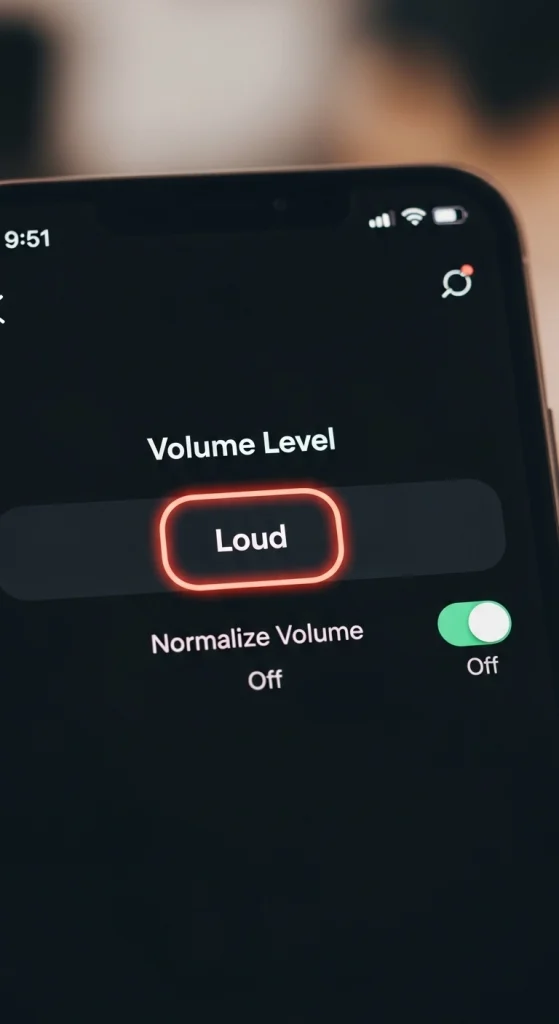
The Main Fix: Change These Two Settings Inside Spotify
This solves the problem for most users:
- Open Spotify and tap your profile photo → Settings
- Tap Playback
- Find Volume level → change it from Normal to Loud
- Find Normalize volume → turn it off
- Close and reopen Spotify
That’s it. Most people notice an immediate difference.
Conclusion
Spotify sounding too quiet is usually a simple problem that you can fix in just a few minutes. Start by changing the volume level to Loud and turning off Normalize Volume in Spotify settings. For most users, this step alone solves the issue.
If the problem is still there, follow the Android or iPhone steps shared above. You don’t need any technical skills; just follow each step carefully, and your Spotify sound will become loud and clear again.
Frequently Asked Questions
Why is Spotify volume lower than that of other apps?
Spotify uses settings like audio normalization and volume level, which can reduce sound compared to other apps.
How do I make Spotify louder on my phone?
Go to Spotify settings, set volume level to Loud, and turn off Normalize Volume.
Does audio normalization reduce Spotify sound?
Yes, it balances all songs but can lower the overall volume and make the music sound quieter.
Why is Spotify quiet even at full volume?
This usually happens due to app settings, Bluetooth devices, or system volume limits.
Can Bluetooth cause low Spotify volume?
Yes, connected devices like earbuds or car systems can reduce or redirect sound.
Will reinstalling Spotify fix low volume?
Yes, reinstalling can remove bugs and reset settings that may be causing the issue.
Is low Spotify volume a hardware problem?
No, in most cases it is a settings issue, not a speaker or hardware problem.